
By the end of reading this guide, you will know how to integrate ChatGPT into WordPress. ChatGPT is an advanced AI tool developed by OpenAI that can understand and respond to human language. It answers questions, writes content, helps with ideas, and even chats like a real person. Many people use ChatGPT for things like customer support, content creation, and interactive tools.
If you run a website on WordPress, adding ChatGPT makes your site more helpful and engaging. ChatGPT can do it all: offer instant answers to visitors, create blog posts faster, or add a fun chatbot.
In this guide, you’ll learn how to integrate ChatGPT into WordPress. There are many ways to use it, like building a chatbot, writing articles, or helping users find what they need. No matter your skill level, we’ll walk you through how to integrate ChatGPT into WordPress in a way that suits your needs.
What you need to Have Ready Before you Integrate ChatGPT to WordPress

Before you start learning how to integrate ChatGPT into WordPress, there are a few things you’ll need to have ready:
1. A WordPress Website
You should already have a WordPress website set up. It can be either:
- Self-hosted (using WordPress.org)
- Managed hosting (like WordPress.com Business Plan or other providers)
If you’re just getting started, Gterahosting offers easy, one-click WordPress installation.
2. OpenAI API Key
To connect your website with ChatGPT, you’ll need an API key from OpenAI. This key lets your site talk to ChatGPT securely.
How to get one:
- Go to https://platform.openai.com/
- Create a free account or sign in
- Click on your profile picture (top right) → “API Keys”
- Click “Create new secret key” and copy it somewhere safe
N/B: You’ll use this key later when setting up the plugin or code.
3. Basic WordPress Knowledge
You don’t need to be a developer, but it helps if you know how to:
- Install and activate plugins
- Edit basic settings in your WordPress dashboard
- Use shortcodes or blocks
READ ALSO: AI Bookkeeping Software: 21 Best Choices for any Company.
How to Integrate ChatGPT into WordPress via Plugin (Recommended)
This is the easiest way to add ChatGPT to your WordPress site. This method doesn’t require any coding and needs just a just a few minutes to set up.
Here are some great plugins that let you integrate ChatGPT into WordPress with just a few clicks:
1. WP Chatbot by OpenAI
This plugin connects directly to OpenAI and adds a chatbot to your site. It’s designed for customer support and general conversation.
Features:
- Easy API key setup
- Chat widget appears on your pages
- Can be customized with your own prompt style
2. AI Engine by Jordy Meow
A powerful plugin for users who want more control. You can build your own chatbot, generate content, and even train it for custom tasks.
Features:
- Chatbot, content generator, and playground in one
- Works with shortcodes and Gutenberg blocks
- Analytics and prompt templates included
3. ChatGPT for WordPress
This plugin focuses on content creation and editing using ChatGPT. Perfect for bloggers and marketers.
Features:
- Use ChatGPT inside the WordPress editor
- Helps write, summarize, or improve your posts
- Simple, clean interface
How to Install and Setup ChatGPT plugins for WordPress
Step 1: Install the Plugin
- Go to your WordPress dashboard
- Navigate to Plugins → Add New
- Search for the plugin name (e.g., “AI Engine”)
- Click Install Now, then Activate
Step 2: Enter Your API Key
- After activation, go to the plugin’s settings page
- Paste your OpenAI API key (you got this earlier)
- Save the settings
⚠️ Keep your API key safe and never share it publicly
Step 3: Customize the Chatbot
- Set where and how the chatbot appears (e.g., bottom right corner, on certain pages)
- Adjust the welcome message and behavior (like tone, prompt, or response length)
- Match the chatbot’s colors and style to your site’s theme
Once it’s set up, test it on your site and see how it interacts with visitors!
How to Custom-Integrate ChatGPT into WordPress (For Developers)
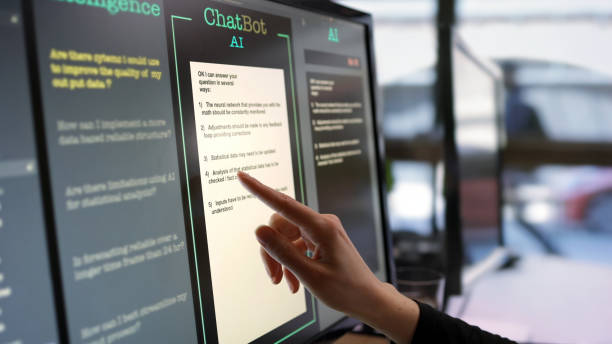
If you want more control over how ChatGPT works on your WordPress site, or if you’re building something custom, you can integrate it manually using PHP and JavaScript. This gives you full flexibility over the chatbot’s design and behavior.
Before going into details of different ways on how to custom-integrate ChatGPT into WordPress, these are some things you must consider;
- Do not expose your API key in JavaScript. Always make API calls server-side using PHP.
- Sanitize user input using sanitize_text_field() or similar to prevent injection.
- Add rate limits or validation if you’re expecting high traffic or abuse.
Adding ChatGPT via Custom JavaScript and PHP
1. Create a Child Theme or Site-Specific Plugin
To keep your changes safe from theme updates, it’s best to either:
- Create a child theme, or
- Build a site-specific plugin (recommended for cleaner separation)
2. Add OpenAI API Logic Using wp_remote_post()
You’ll make server-side calls to OpenAI’s API using WordPress’s wp_remote_post() function. This keeps your API key hidden from the frontend and more secure.
3. Build a Frontend UI with JavaScript/AJAX
The user will interact with a simple chat interface. When they submit a message, it sends the request to your PHP handler using AJAX, gets the ChatGPT response, and shows it on the page.
Example Code Snippets of a Simple Chatbot
1. JavaScript (Frontend UI + AJAX Call)
Add this to your theme’s footer or via a custom JavaScript file:
<div id="chat-box">

  <input type="text" id="user-message" placeholder="Ask me anything..." />

  <button onclick="sendToChatGPT()">Send</button>

  <div id="chat-response"></div>

</div>

<script>

function sendToChatGPT() {

  const message = document.getElementById("user-message").value;

  fetch('/wp-admin/admin-ajax.php', {

    method: 'POST',

    headers: {'Content-Type': 'application/x-www-form-urlencoded'},

    body: `action=chatgpt_request&message=${encodeURIComponent(message)}`

  })

  .then(res => res.json())

  .then(data => {

    document.getElementById("chat-response").innerText = data.response;

  });

}

</script>
2. PHP (Handle AJAX and Call OpenAI API)
Add this in your custom plugin or theme’s functions.php:
add_action('wp_ajax_chatgpt_request', 'handle_chatgpt_request');

add_action('wp_ajax_nopriv_chatgpt_request', 'handle_chatgpt_request');

function handle_chatgpt_request() {

    $user_input = sanitize_text_field($_POST['message']);

    $response = wp_remote_post('https://api.openai.com/v1/chat/completions', [

        'headers' => [

            'Content-Type' => 'application/json',

            'Authorization' => 'Bearer YOUR_API_KEY_HERE'

        ],

        'body' => json_encode([

            'model' => 'gpt-3.5-turbo',

            'messages' => [

                ['role' => 'user', 'content' => $user_input]

            ]

        ])

    ]);

    $body = wp_remote_retrieve_body($response);

    $data = json_decode($body, true);

    $message = $data['choices'][0]['message']['content'] ?? 'Sorry, no response.';

    echo json_encode(['response' => $message]);

    wp_die();

}
How to Embed a ChatGPT Widget into WordPress
If you want to place a ChatGPT chatbot directly on a specific page or post, you can create a simple widget using HTML and JavaScript. You can then embed it using a shortcode, a custom block, or directly in your page builder.
How to Create a Chatbot UI (HTML + JS)
Start by creating a basic chat interface. Here’s an example of a simple HTML and JavaScript setup:
<div id="chatgpt-widget">

  <div id="chat-messages"></div>

  <input type="text" id="chat-input" placeholder="Type your question..." />

  <button onclick="sendMessage()">Send</button>

</div>

<script>

function sendMessage() {

  const input = document.getElementById('chat-input');

  const userMessage = input.value;

  input.value = '';

  // Add user's message to chat

  const chat = document.getElementById('chat-messages');

  chat.innerHTML += `<div><strong>You:</strong> ${userMessage}</div>`;

  // Send to server (similar to earlier AJAX example)

  fetch('/wp-admin/admin-ajax.php', {

    method: 'POST',

    headers: { 'Content-Type': 'application/x-www-form-urlencoded' },

    body: `action=chatgpt_request&message=${encodeURIComponent(userMessage)}`

  })

  .then(res => res.json())

  .then(data => {

    chat.innerHTML += `<div><strong>ChatGPT:</strong> ${data.response}</div>`;

  });

}

</script>
How to Embed ChatGPT into WordPress with Shortcodes or Custom Blocks
Option 1: Use a Shortcode
If you’re using a custom plugin or theme, you can wrap the widget code in a shortcode so it can be placed anywhere:
function chatgpt_widget_shortcode() {

    ob_start();

    ?>

    <!-- Paste the HTML + JS code here -->

    <?php

    return ob_get_clean();

}

add_shortcode('chatgpt_widget', 'chatgpt_widget_shortcode');
Now you can add [chatgpt_widget] anywhere in your posts or pages.
Option 2: Use a Custom Block
If you’re using the Gutenberg editor and feel comfortable with a little JavaScript/React, you can create a custom block for a more polished look and drag-and-drop support. (You can also use a block plugin like Block Lab or BlockMeister to help with this without coding.)
Use Cases and Ideas for ChatGPT in WordPress

1. Customer Support Chatbot
Let ChatGPT answer common questions from visitors, like business hours, pricing, or how to use your service. It’s a great way to provide 24/7 help without hiring extra staff.
2. Blog Content Assistant for Authors
Use ChatGPT in your WordPress editor to brainstorm ideas, write outlines, or even draft full blog posts. It’s like having a writing partner inside your dashboard.
3. Product Recommendation Bot
If you run an online store, ChatGPT can suggest products based on what the customer is looking for.
Read Also: AI Invoice Processing Software (21 Best and Quick Choices).
4. Collecting User Feedback via Natural Language
Instead of using boring forms, let users type their thoughts naturally. ChatGPT can help summarize or categorize their feedback automatically.
Tips for Optimization
Here are a few important tips to make sure your ChatGPT integration in wordpress runs smoothly and doesn’t cause issues.
1. Handle User Input Responsibly
Always sanitize and validate anything users type before sending it to OpenAI’s API. This protects your site from abuse or security risks.
Use: sanitize_text_field() in PHP
2. Set Character Limits or Prompt Guidelines
To keep responses clear and costs down, limit the length of user messages and responses. You can also set a clear “prompt style” that guides the tone or purpose of the chatbot.
Example Prompt:
“You are a helpful customer support assistant for an online bookstore.”
3. Manage API Costs with Usage Limits
Each API call costs money, so be smart about when and how it’s used:
- Limit how many messages a user can send per session
- Cache responses if they’re used often
- Consider using smaller models (e.g., gpt-3.5-turbo) to reduce costs
Conclusion – How to Integrate ChatGPT into WordPress
Integrating ChatGPT into WordPress opens up a world of possibilities—from automating customer support to speeding up content creation. Whether you choose a simple plugin or build a custom solution, ChatGPT can make your site more interactive, helpful, and engaging for visitors.
By following the steps in this guide, you now know how to integrate ChatGPT into WordPress in a way that fits your needs and technical skills. Start experimenting, get creative, and see how AI can take your WordPress site to the next level!
