You want to disable auto excerpt on WordPress because they don’t often give what you want. You craft this beautiful post, carefully choosing your words, only to see it cut off awkwardly on your blog page, right in the middle of a sentence. It’s frustrating! Instead of giving readers a clean snapshot, you get an incomplete snippet that doesn’t do your post justice.
If you’ve been dealing with this and want a quick way to take control of how your posts show up, you’re in the right place. In this guide, I’ll walk you through the simplest way to disable auto excerpt on wordpress so you can decide what shows up on the page.
Why Disable or Customize Auto Excerpts on WordPress?
There are several reasons why you might want to turn off auto excerpts or use a custom excerpt instead:
- Visual Appeal: Some themes are designed to look better when displaying full posts, especially if they’re focused on images or storytelling.
- User Experience: Custom excerpts give you the freedom to choose exactly how your content is previewed, which can be more engaging for readers.
- SEO Strategy: If you’re looking to rank for certain keywords or phrases, crafting a custom excerpt that highlights them can give your content a boost in search results.
So, while auto excerpts have their conveniences, disabling or customizing them is often a better choice for anyone looking to fine-tune their blog’s design and functionality.
Step-by-Step Guide to Disable Auto Excerpts on WordPress Posts
When you write a blog post in wordpress, an excerpt is automatically generated for you. This is usually the first 55 words from your blog post. The downside to this is that a sentence or can be cut in half to form the excerpt, this gives a meaningless excerpt.
To disable these auto excerpts when creating a wordpress blog post, this is an easy and very simple way to do it.
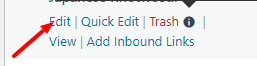
Step 1: Click the Edit button on the post you want to change.
If you are creating a new post then just open your editor and start creating your blog post first.
Step 2: In the editing screen, go to Post Settings in the upper-right corner.

Look at where the arrow in this image points at and click there, the settings will popup
Step 3: Click More Options to reveal the Excerpt box.
This step is for those who have not updated their wordpress account. In the new wordpress update, on clicking “post settings”, you will see “add an excerpt” text. Just click on it and leave it blank if you dont want an excerpt or custom type in what you want.
Step 4: Click Update to save your changes.
Save your changes and proceed with your writing.
What Are Auto Excerpts in WordPress?
In WordPress, excerpts are brief summaries of your posts that display on archive pages, your homepage, or even in search results. By default, WordPress automatically generates these excerpts by taking a portion of the first paragraph of your post (usually around 55 words) and displaying it as a preview. This feature helps provide readers with a quick look at your content without showing the entire post.
Pros of Auto Excerpts
- Saves Time: Since WordPress generates these excerpts automatically, you don’t need to create a custom summary for each post unless you want to.
- Uniform Look: Auto excerpts give a clean, consistent appearance across your site’s archive pages, especially on the homepage or category pages, making it easy for visitors to skim through posts quickly.
Cons of Auto Excerpts
- Cuts Off Content: Auto excerpts can cut off sentences mid-thought, leading to awkward, incomplete previews.
- Limited Control: You have little control over where the text is truncated, which can impact how the post feels to readers and might not capture the post’s most engaging points.
How to Remove Auto Excerpts On WordPress Site-Wide
If you’re looking to remove excerpts across your entire site and show full posts on your blog, archive, or category pages, you have a few options. This is for those who want readers to see the full content immediately, without needing to click through each post. Let’s explore the options to do this, from using custom code to WordPress plugins.
Option 1: Using Custom Code
To disable excerpts across your entire site, you can add a small snippet of code to your theme’s functions.php file. This will ensure that full posts display instead of excerpts, giving you complete control over your content’s presentation.
Here’s how to do it:
- In your WordPress dashboard, go to Appearance > Theme Editor.
- Select the functions.php file from the list of theme files on the right.
- Add the following code:
“// Disable automatic excerpts on all archive pages
function show_full_content_on_archives($query) {
if (!is_admin() && $query->is_main_query() && (is_home() || is_archive() || is_category())) {
$query->set(‘posts_per_page’, 10); // Adjust the number of posts displayed per page if needed
$query->set(‘nopaging’, true); // Disable pagination to show full posts on a single page
}
}
add_action(‘pre_get_posts’, ‘show_full_content_on_archives’);
// Override the_excerpt with full content in archive pages
remove_filter(‘the_excerpt’, ‘wp_trim_excerpt’);”
- Be sure to click Update File after pasting the code. Once saved, this will replace excerpts with full content on your blog, archive, and category pages.
The first part of this code targets your main query and ensures that full posts (instead of excerpts) appear on your blog, archive, and category pages.
The second part removes WordPress’s default excerpt filter, so full posts display on the archive page rather than truncated versions.
Option 2: Using a Plugin
If editing code isn’t your thing, you can use a plugin to control excerpt settings without touching any files. Here are a couple of plugins that can help:
- Advanced Excerpt: This plugin allows you to control how excerpts are handled, including the option to disable them entirely.
- Advanced Post Excerpts: Some plugins specifically target excerpt settings and can disable excerpts on your blog and archive pages, allowing you to show full posts instead.
Excerpt Not Still Disabling?
If excerpts still appear on your blog or archive pages after following the steps, there may be a few reasons why:
1. Theme Restrictions
Some WordPress themes are coded to display excerpts by default, regardless of your settings. If your theme enforces excerpts, even custom code changes might not work as expected. In this case:
- Check Theme Settings: Go to Appearance > Customize and look for any settings related to content display, excerpts, or blog layout. Some themes allow you to switch between displaying full content and excerpts without editing code.
- Contact Theme Support: If there’s no clear option in the settings, reach out to the theme’s support team. They may be able to guide you or provide custom code specific to your theme.
2. Plugin Conflicts
If you have plugins installed that manage content display or excerpts (such as content shorteners, SEO plugins, or page builders), they might override your settings. To check for plugin conflicts:
- Disable Plugins Temporarily: Try disabling any plugins that might affect post excerpts. Refresh your site to see if the issue resolves. If it does, you can then enable plugins one by one to identify the conflicting one.
- Use a Dedicated Excerpt Plugin: Some plugins like Advanced Excerpt allow you to set excerpt behavior specifically, which can prevent conflicts with theme or other plugin settings.
Once you’ve made your adjustments double-check that everything looks as expected:
- Preview Your Posts: Use the Preview option on individual posts to see how they appear without publishing the changes right away.
- Refresh Your Blog and Archive Pages: Go to your main blog page or any archive pages (e.g., category or tag pages) and refresh the browser to confirm the full content is displaying instead of excerpts.
