
If you’ve ever dabbled in design, engineering, or manufacturing, you’ve likely come across CAD—short for Computer-Aided Design. CAD software is a must-have tool for creating precise 2D drawings and 3D models, whether you’re designing a product, drafting a blueprint, or planning a creative project. The good news? You don’t have to spend a fortune to get started. Some of the best free CAD software out there can give you powerful tools for creating amazing designs, without costing you a dime.
After testing several options ourselves, we’ve found that software like FreeCAD and TinkerCAD stand out as top picks. FreeCAD is perfect if you’re into engineering or parametric design, while TinkerCAD is super beginner-friendly and great for quick 3D modeling.
But depending on your needs—whether you’re a professional, student, or hobbyist—there’s a range of tools that might suit you better. In this guide, we’ll share our curated list of the best free CAD software, so you can find the one that works for you.
What to Look for in a Good Free CAD Software
Choosing the right CAD software can feel overwhelming, especially with so many free options available. To make the process easier, here are some key things to consider when picking the best free CAD software for your needs:
1. User-Friendliness
If you’re new to CAD, look for software with an intuitive interface and a simple learning curve. A clean layout and beginner-friendly tools can make all the difference when starting out. Options like TinkerCAD, for example, are perfect for beginners thanks to their drag-and-drop simplicity.
2. Features and Capabilities
Think about the tasks you need the software to handle. Do you need 2D drafting for blueprints, or are you looking to dive into 3D modeling? Advanced features like parametric design (to create models based on constraints) and simulation tools might also be essential, depending on your project. Tools like FreeCAD are packed with these capabilities, making it a strong choice for complex designs.
3. Industry Relevance
Different CAD tools cater to different industries. For example, architects might prefer something like SketchUp Free for its focus on 3D buildings and landscapes, while engineers might go for FreeCAD or Fusion 360 (free for personal use) for precision and mechanical design. Make sure the software aligns with your specific needs.
4. Cross-Platform Availability
It’s important to choose software that works on your device. Some tools are limited to specific platforms (like Windows or macOS), while others, such as LibreCAD and Onshape, work across Windows, macOS, and Linux—or even directly in your browser.
5. Community and Support
Good support can make a big difference when you’re learning a new tool. Look for software with active forums, detailed tutorials, and plenty of online resources. Open-source options like FreeCAD often have vibrant communities that provide helpful advice and troubleshooting.
For You: The 11 Best Star Stacking Software for 2025.
The 11 Best Free CAD Software for 2025
Here’s our carefully curated list of the best free CAD software available today. Each tool has unique strengths, so you can pick one that suits your needs—whether you’re a professional, student, or hobbyist.
1. TinkerCAD

TinkerCAD is a simple, browser-based CAD tool designed with beginners in mind. It’s a great starting point for anyone new to 3D design.
Best For: Hobbyists, students, and those interested in 3D printing.
Key Features:
- Drag-and-drop interface.
- Built-in library of basic shapes and tools.
- Easy export options for 3D printing.
Pros:
- Extremely user-friendly.
- Perfect for quick designs and prototyping.
- No downloads required—works entirely online.
Cons:
- Limited for complex designs.
- Lacks advanced features like parametric modeling.
2. FreeCAD

FreeCAD is an open-source tool that excels at parametric design, allowing you to create models based on constraints and easily modify them later.
Best For: Engineers, product designers, and advanced hobbyists.
Key Features:
- Parametric modeling for precise control.
- Wide range of design workbenches (architecture, engineering, etc.).
- Open-source with an active community for support.
Pros:
- Highly customizable and versatile.
- Great for detailed engineering and mechanical design.
- Works on Windows, macOS, and Linux.
Cons:
- Steeper learning curve for beginners.
- Interface feels cluttered at first.
3. SketchUp Free
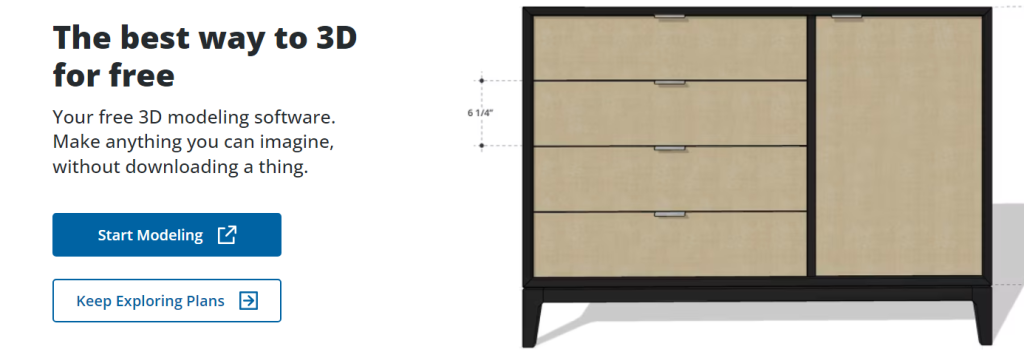
SketchUp Free is a web-based version of the popular SketchUp software, focusing on intuitive 3D modeling. It’s a go-to tool for architects and designers.
Best For: Architects, interior designers, and creative hobbyists.
Key Features:
- Easy-to-use 3D drawing tools.
- Integration with 3D Warehouse (a huge library of pre-made models).
- Works entirely in your web browser.
Pros:
- Highly intuitive and beginner-friendly.
- Great for visualizing architectural designs.
- No software installation required.
Cons:
- Limited tools compared to the paid versions.
- Focuses more on 3D modeling, less on precision drafting.
4. Fusion 360

Fusion 360 is a professional-grade CAD tool by Autodesk, offered for free to non-commercial users. It combines 3D modeling, simulation, and manufacturing tools in one platform.
Best For: Advanced hobbyists, small startups, and makers with technical expertise.
Key Features:
- Advanced 3D modeling and simulation tools.
- Cloud-based collaboration for team projects.
- Supports CAM (Computer-Aided Manufacturing) workflows.
Pros:
- Full-featured, even in the free version.
- Professional-level precision and capabilities.
- Great for mechanical design and prototyping.
Cons:
- Requires internet access for cloud-based tools.
- More complex interface, better for experienced users.
5. Blender
Blender is a versatile and powerful open-source tool primarily known for 3D modeling, animation, and rendering. While not strictly a CAD tool, it’s widely used for creative projects, and its advanced modeling capabilities make it a strong choice for some CAD applications.
Best For: Creative professionals, game designers, and those working on animation or artistic projects.
Key Features:
- Advanced 3D modeling and sculpting tools.
- Animation, rendering, and simulation capabilities.
- Extensive library of add-ons for custom functionality.
Pros:
- Completely free and open-source.
- Ideal for artistic and creative projects.
- Strong community support with tutorials and resources.
Cons:
- Not designed specifically for technical CAD work.
- Steep learning curve for new users.
6. Onshape

Onshape is a cloud-based CAD platform designed for collaboration. It’s free for non-commercial makers and educators, offering powerful tools for design teams working together.
Best For: Teams, educators, and makers looking for collaborative CAD tools.
Key Features:
- Cloud-based platform with real-time collaboration.
- Full suite of 3D modeling tools.
- Accessible on any device with a web browser.
Pros:
- Enables team collaboration with no need for file sharing.
- Updates and backups happen automatically in the cloud.
- Free version includes many professional-grade features.
Cons:
- Requires an internet connection.
- Free version restricts files to public projects.
7. NanoCAD
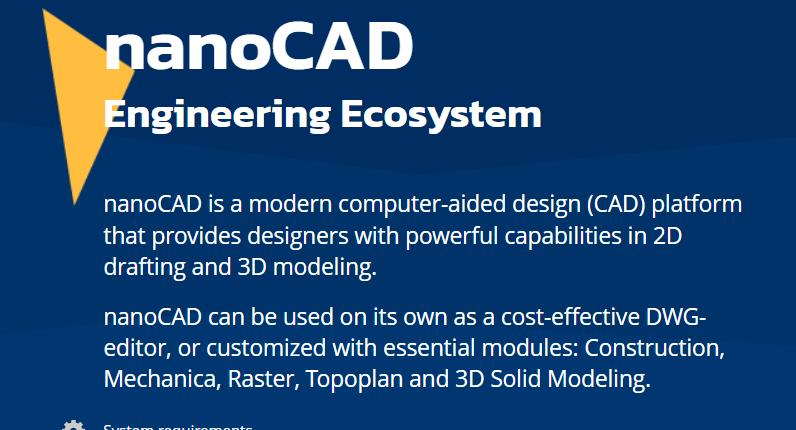
NanoCAD is a free version of a professional-grade CAD tool that focuses on 2D drafting and basic 3D design. It’s an excellent choice for users familiar with traditional CAD workflows.
Best For: Professionals needing 2D drafting tools and students learning CAD basics.
Key Features:
- Familiar interface similar to AutoCAD.
- Basic 2D drafting and simple 3D modeling capabilities.
- Support for DWG files, making it compatible with industry-standard formats.
Pros:
- Easy transition for those experienced with AutoCAD.
- Free version offers essential tools for drafting.
- Affordable paid upgrades available for advanced features.
Cons:
- Limited features in the free version.
- Not ideal for advanced 3D modeling or simulations.
8. LibreCAD
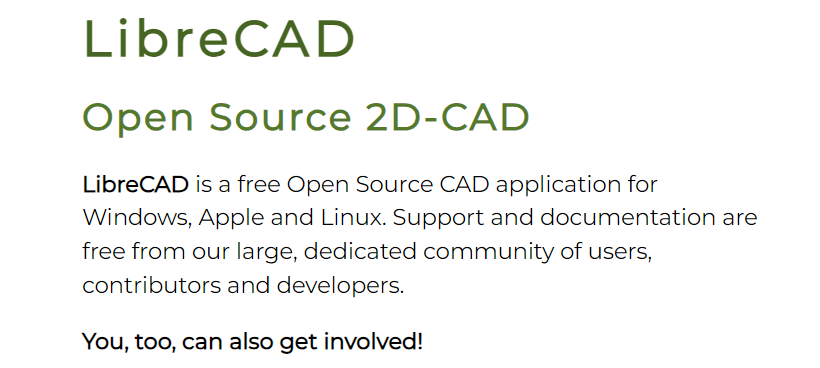
LibreCAD is a lightweight and open-source 2D CAD tool designed for drafting tasks. It’s a great option for users who need a straightforward solution for creating technical drawings.
Best For: Hobbyists, students, and professionals working on simple drafting tasks.
Key Features:
- Focused on 2D drafting with an easy-to-use interface.
- Fully open-source with cross-platform support.
- Exports drawings in standard formats like DXF and SVG.
Pros:
- Lightweight and fast, even on older hardware.
- Simple and intuitive for basic drafting.
- Free forever, with no paid tiers.
Cons:
- Limited to 2D drafting; no 3D modeling features.
- Fewer advanced tools compared to other CAD software.
9. OpenSCAD
OpenSCAD is a unique CAD tool that focuses on script-based modeling. Instead of relying on a graphical interface, users create designs by writing code, making it a favorite among programmers and those who enjoy parametric modeling.
Best For: Programmers, engineers, and parametric design enthusiasts who enjoy scripting.
Key Features:
- Script-based approach for creating precise and parametric models.
- Ability to define relationships and constraints programmatically.
- Lightweight and works on multiple platforms (Windows, macOS, Linux).
Pros:
- Great for creating complex models with exact dimensions.
- Open-source with strong community support.
- Highly efficient for repeatable and parametric designs.
Cons:
- Not beginner-friendly; requires some coding knowledge.
- Lacks graphical design tools for visual modeling.
10. BRL-CAD

BRL-CAD is an advanced, open-source modeling tool with a focus on scientific and military-grade applications. With its extensive history (developed by the U.S. Army), it’s designed for highly detailed and precise modeling tasks.
Best For: Engineers and professionals working on military, scientific, or high-precision projects.
Key Features:
- Advanced solid modeling capabilities.
- Supports ray tracing, rendering, and analysis tools.
- Highly reliable for large-scale, detailed projects.
Pros:
- Open-source and completely free.
- Ideal for high-precision, scientific-grade modeling.
- Supports extensive customization and scripting.
Cons:
- Outdated user interface compared to modern CAD tools.
- Steep learning curve for new users.
11. DesignSpark Mechanical
DesignSpark Mechanical is a free CAD tool aimed at mechanical engineers and students. It combines ease of use with powerful tools for creating 3D mechanical designs quickly and efficiently.
Best For: Engineers, students, and hobbyists focusing on mechanical design and prototyping.
Key Features:
- Intuitive, drag-and-drop interface for 3D modeling.
- Supports rapid prototyping and exporting to 3D printers.
- Compatible with common file formats like STEP and STL.
Pros:
- Beginner-friendly while offering advanced tools.
- Great for mechanical design and prototyping.
- Free with no major limitations.
Cons:
- Limited to mechanical applications—less useful for other industries.
- Occasional advanced features are locked behind a paywall.
How to Choose the Best Free CAD Software
1. Match Features to Your Needs
Start by identifying the type of projects you’ll be working on. Do you need 2D drafting for floor plans and technical drawings, or are you focused on 3D modeling for product design and prototyping? For example:
- 2D Drafting: Tools like LibreCAD or NanoCAD.
- 3D Modeling: Consider FreeCAD, Fusion 360, or SketchUp Free.
- Creative Projects: Blender is ideal for animation and game design.
2. Look at the Learning Curve
If you’re new to CAD, prioritize tools with beginner-friendly interfaces like TinkerCAD or DesignSpark Mechanical. For advanced users, options like FreeCAD or OpenSCAD can offer powerful features but come with a steeper learning curve. Look for software with tutorials and strong community support to help you get started.
3. What are the software System Requirements and Compatibility?
Make sure the software you choose is compatible with your operating system and hardware. Some tools, like Onshape and SketchUp Free, run in your browser, making them ideal for users with less powerful computers. Others, like Fusion 360 or Blender, may require more robust hardware to run smoothly.

One comment
Pingbacks and Tracebacks
[…] READ ALSO: 11 Best Free CAD Software Options for Designers and Engineers 2025. […]